Camera
Just you, full frame. For the intro, the Q&A and the goodbye.
Early preview · for Macs on macOS 14 or later
OnAir puts your camera, your screen and your Mac’s sound into one stream and sends it to YouTube. Pick a layout, rehearse, press Go live. No subscription, and none of the knobs.
Read the source on GitHub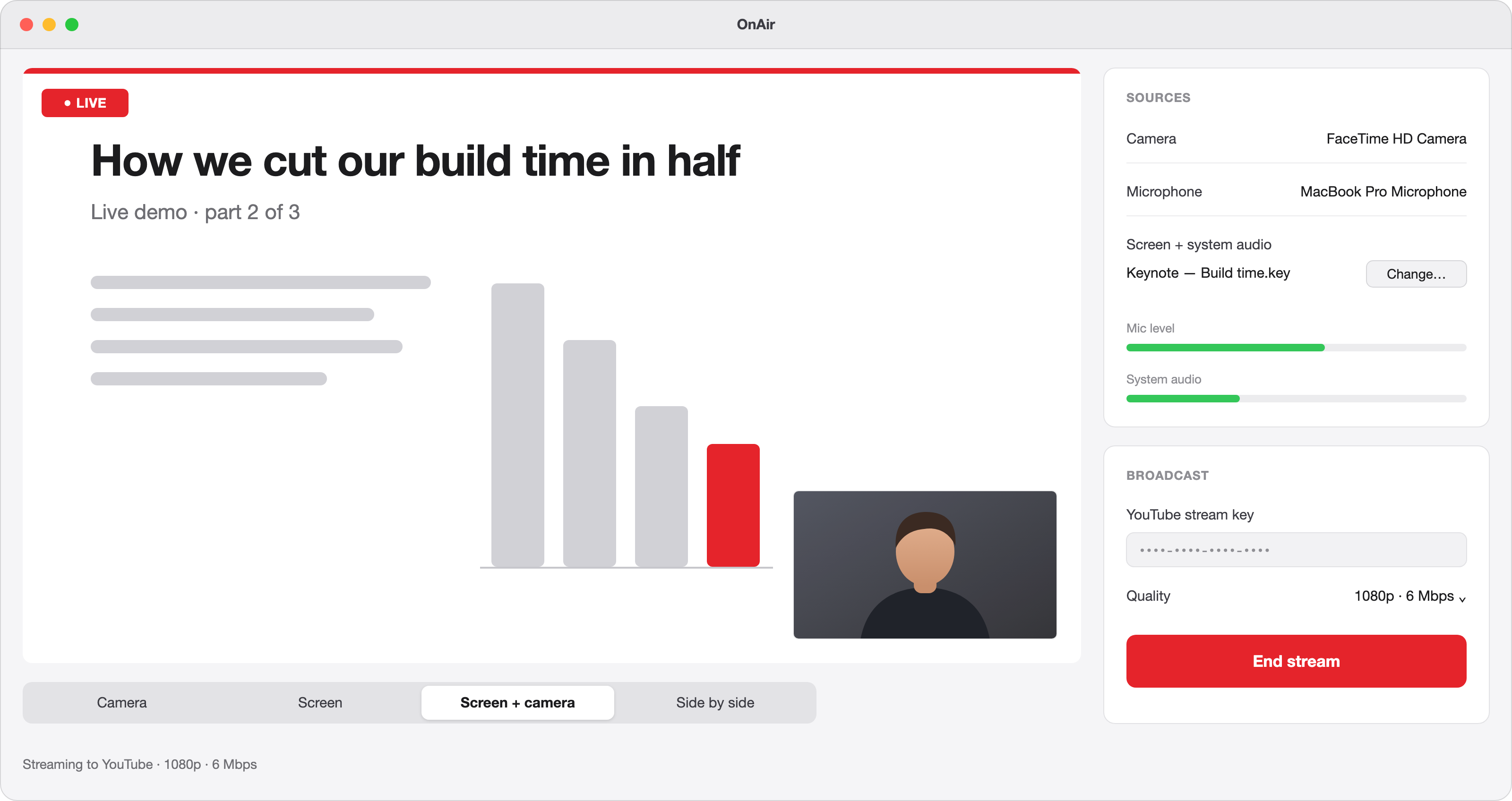
Layouts
No scenes to build. Switch between them while you rehearse or while you are live, and the stream follows.
Just you, full frame. For the intro, the Q&A and the goodbye.
A whole display or a single window, full frame. Share one window and only that window shows.
Your screen, with your camera in the bottom-right corner. The classic for demos and classes.
Screen on the left, camera on the right, the same size. When you matter as much as the slides.
Rehearsal
Before anyone sees anything, OnAir shows you exactly what YouTube will get. Check the framing, the sound and the layouts, then go live from the same window.
Your camera, microphone and shared screen come up in a live preview. Nothing leaves your Mac yet.
Copy the stream key from YouTube Studio once. OnAir keeps it in your Mac’s Keychain for next time.
Change layouts as you talk. End stream stops the broadcast; Back to rehearsal gets you ready for the next one.
Sources
The Mac’s own camera, a webcam or your iPhone with Continuity Camera.
Any input your Mac knows: the built-in mic, AirPods or a USB microphone.
Choose with macOS’s own picker. Share one window and your notifications and other apps stay private.
The video or music you play goes into the stream, mixed with your voice. No extra audio drivers.
Compare
StreamYard is easy, runs in the browser and charges a subscription for the good parts. OBS is free and can do anything, if you learn it. OnAir keeps StreamYard’s simplicity and runs on your own Mac.
 OnAir |
StreamYard | OBS Studio | |
|---|---|---|---|
| Price | Free | Free plan with limits and its branding; paid plans are a subscription | Free |
| Where it runs | A native Mac app | In the browser; the stream goes out from their servers | Windows, Mac and Linux |
| Getting started | Pick a layout, paste your YouTube key | Sign in and connect your channels | Build scenes and sources, tune the encoder |
| Remote guests | Not yet | Not built in | |
| Several platforms at once | Not yet: YouTube only | On paid plans | With plugins |
One destination, over RTMPS with your stream key. Twitch and streaming to several platforms at once come later.
No remote guests, overlays or vertical video in this first version. YouTube keeps the recording of your stream.
OnAir is built on macOS’s own capture and encoding, which is why it is light. It needs macOS 14 Sonoma or later.
Under the hood
Capture, mixing and H.264 encoding happen on your Mac with Apple’s frameworks and the hardware encoder. No browser tab and no server in the middle.
Early preview
OnAir is new. If something breaks during a stream, or a layout is missing, open an issue: it shapes what comes next.
Uses a free GitHub account.